First, try macOS Now Playing
Start a track, then click Control Center in the menu bar and open Now Playing. Apple says it can pause, skip, and scrub media without switching to the source app. If your keyboard has media keys, those can handle quick play, pause, and skip actions too. This is enough if you only need occasional control and do not need a card to stay visible.
When a floating card helps
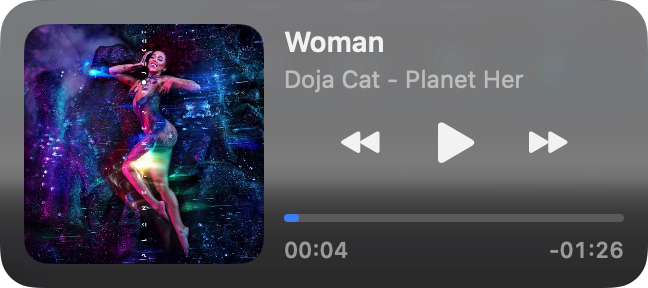
If you frequently glance at the song title or artwork while writing, coding, or arranging windows, a separate card can save the extra Control Center click. NowPlayingWidget places track details and available playback controls above your work windows. It has Compact, Normal, and Full sizes, so you can choose how much desktop space to give it.
Dock at the notch or a screen edge
Drag NowPlayingWidget near the top centre of your display to use the black notch player, or toward either side for a slim vertical dock. A docking hint shows where it will settle; dragging away animates back to your chosen floating size. The top-centre mode also works on displays without a notch. Explore the notch player and side docks.
The floating and side-docked players use native Liquid Glass on macOS 26 or later, with translucent glass on older versions. Choose Dark, Light or System appearance. The app and website support all 24 official EU languages; French, German and the full language list are available.
Test the sources you actually use
- Play a track in your usual music app or browser site.
- Check whether macOS Now Playing shows the source, then check the floating card.
- Try pause, resume, skip, and seeking where the source supports them. A live stream may have no seekable timeline.
- Switch to your second most-used source and repeat the check. Browser behavior can vary by site and browser.
NowPlayingWidget reads what a source shares with macOS Now Playing; it does not connect to each streaming account separately. A source can provide a title but only some controls. The 14-day trial is the best way to check your exact setup before buying. Read the music and audio source guide.
If a track does not appear
Confirm that playback has started and look in macOS Now Playing first. If it does not show the source either, try a different track or source; the original app or website may not be sharing playback details with macOS. If macOS shows the track but NowPlayingWidget does not, tell us which app or browser and macOS version you used so we can investigate.
Synced lyrics are optional and need a matching result from a lyrics provider. Playback controls may work even when lyrics are unavailable. Play History records what the widget observes while it is running; it does not import a complete listening history from your streaming service.
Try the floating layout on your own desktop
NowPlayingWidget runs on Apple Silicon Macs with macOS 13 or later. The full 14-day trial needs no card. If it fits your routine, a one-time license covers up to five Macs.
Download the 14-day trial Watch the real playback demoBuilt-in control references: Apple's Control Center guide and Apple's media-key guide.