NowPlayingWidget 1.6.2 · Streaming mode
Your music. A flexible OBS overlay for Mac.
Show your current track, artist, album art and available lyrics in a resizable OBS music overlay. The track follows compatible music apps and browser playback automatically, using the same macOS Now Playing information as your desktop widget.
Zero per-service setup. Automatic track updates.
Play music in a compatible source and open Streaming mode. There is no extra music account to connect, API key, plugin or browser-source URL to paste. Add the native window capture in OBS once and grant Screen Recording permission, then your displayed track updates as playback changes. Stream audio is configured separately in OBS.
Download for Mac Buy a one-time license
Apple Silicon · macOS 13+ · Free 14-day direct-download trial · No card required
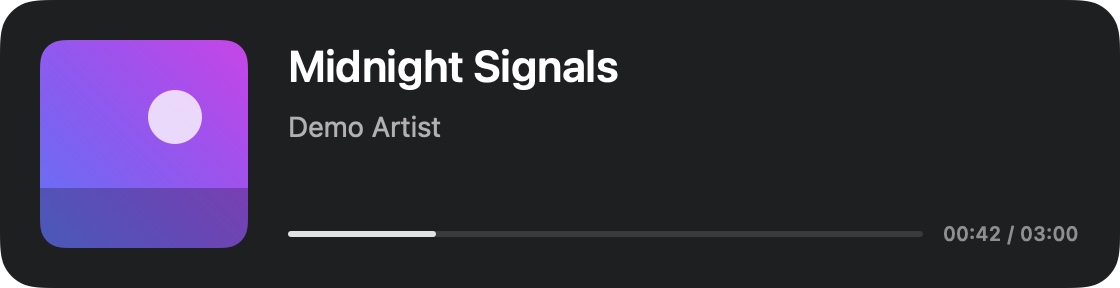
Set up your OBS music overlay
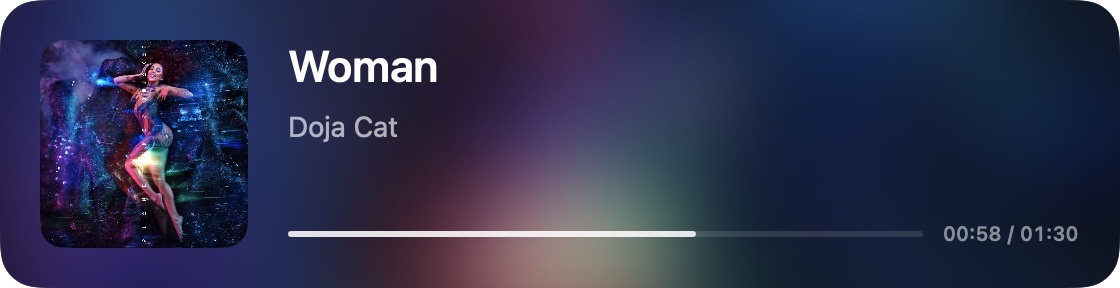
- Open Streaming mode. Start NowPlayingWidget and play music in a source that shares its status with macOS. Choose Widget mode → Streaming, or press ⌘4. You can also use the streaming icon at the top center of Full mode’s album art.
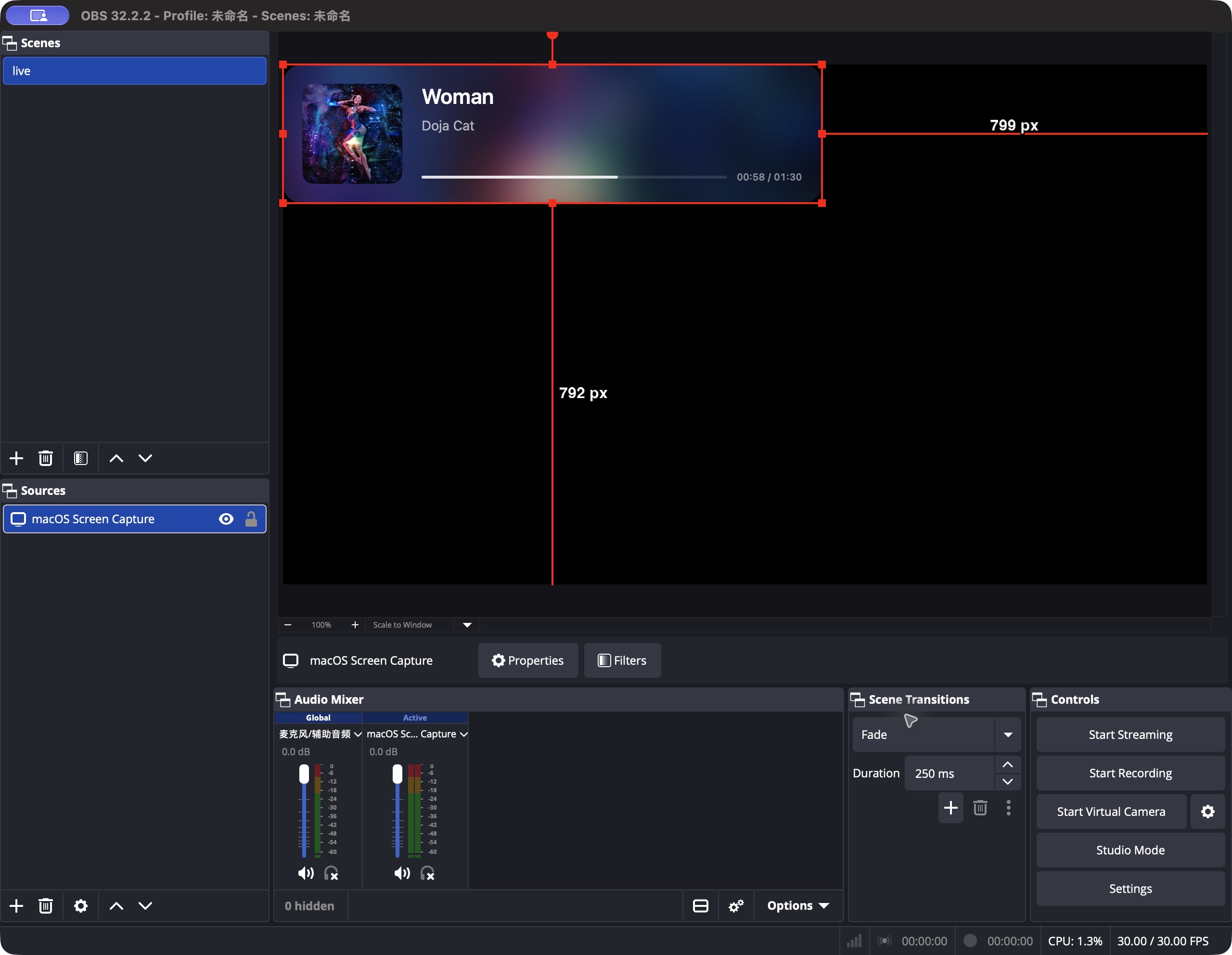
- Add macOS Screen Capture in OBS. In Sources, click + and choose macOS Screen Capture. Grant OBS Screen Recording permission when macOS asks.
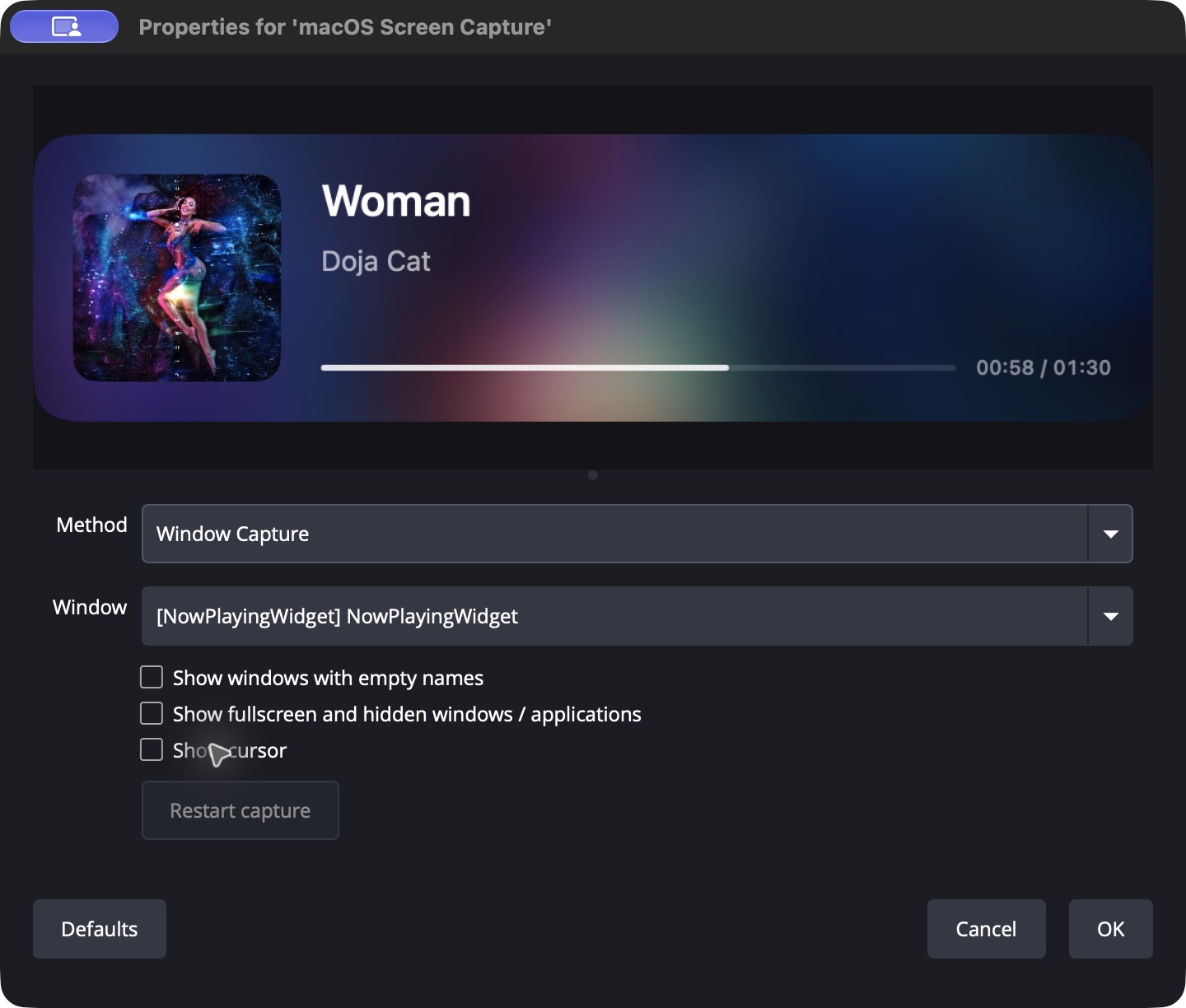
- Choose the player window. In the source properties, set Method to Window Capture and select [NowPlayingWidget] NowPlayingWidget. Turn Show cursor off. Capture this individual window so Appearance, Settings and the first-time tour stay outside the source.
- Place the overlay in your scene. Select the source to display OBS’s red transform outline. Move and scale it in the preview. Drag the corners of the NowPlayingWidget window to change its layout, then check the capture and framing in OBS.
If the capture is blank after a restart
Keep NowPlayingWidget open in Streaming mode, then reopen the OBS source properties and reselect its current window. If the source still refers to a window that no longer exists, add a fresh macOS Screen Capture source and select the player again. Check OBS’s Screen Recording permission in macOS System Settings if no windows appear.
Match the overlay to your stream
Hover the album art and open Appearance using its bottom-right sliders icon. Pick Color, Glass, Blurred artwork or Zoomed artwork, then adjust background color and transparency. Background transparency leaves the text independently adjustable. Color or artwork backgrounds give a predictable capture; native Glass depends on the backdrop your capture host reproduces.
Choose a font, text color, outline and text background. Title and subtitle have independent Left / Center / Right alignment, plus Top / Middle / Bottom positioning for the text block. Hide progress or playback time independently for a cleaner scene. These settings apply only to Streaming mode.
Use Reset size to return to 560 × 144 points while keeping your layout. Use Reset layout to restore Streaming appearance while keeping your current window size. Wide and tall windows adapt automatically.
Music, lyrics and your desktop widget
There is no browser-source URL to manage. NowPlayingWidget follows Apple Music, Spotify and other sources that publish playback information through macOS Now Playing. Available metadata depends on the source. Lyrics require a matching track from the existing lyric providers; use the artwork’s lyrics icon when available.
Keep the player open during capture. Switch back to Full using the top-left album-art icon, or return to Compact and Normal from the app menu. First-time labels explain the controls in each mode. The overlay displays music information; use OBS’s audio sources and mixer to configure stream audio separately.
For the broadcaster’s source controls, see the official OBS macOS Screen Capture guide. For Streamlabs Desktop, add macOS Screen Capture, choose Window Capture and select NowPlayingWidget. This was checked with Streamlabs Desktop 1.21.6 on Mac; use the modern source if the older Window Capture source is blank. Other hosts need individual-window capture; verify your scene during the trial.
OBS Mac overlay questions
Is the OBS overlay zero setup?
Track following needs no per-service account connection, API key, plugin or browser-source URL. OBS still needs a macOS Screen Capture source, the NowPlayingWidget window selected and Screen Recording permission. Configure audio routing separately in OBS.
Does this use an OBS browser-source URL?
Use native window capture. Open Streaming mode in NowPlayingWidget, then select its named window in OBS. There is no overlay URL to paste or extra music account to connect.
Can I show Spotify or Apple Music in OBS on Mac?
NowPlayingWidget follows playback information shared with macOS Now Playing, including Apple Music, Spotify and compatible browser playback. Track details and controls depend on the source; test your own music setup during the trial.
Can I show lyrics and hide the progress bar?
Yes. When matching lyrics are available, use the artwork’s lyrics icon. Streaming Appearance offers independent progress-bar and playback-time switches, plus text and background styling.
Does it send my music audio to the livestream?
Streaming mode displays track metadata, artwork and available lyrics. Configure music audio sources separately in OBS and check your mixer before going live.
Can I use Streamlabs Desktop or another host?
Streamlabs Desktop 1.21.6 was checked on Mac using macOS Screen Capture, with Method set to Window Capture and the NowPlayingWidget window selected. Use that modern capture source; its older Window Capture source may show a blank preview. Other hosts need individual-window capture; check your scene during the free trial.
What Mac do I need?
NowPlayingWidget requires macOS 13 or later and Apple Silicon (M1 or newer). OBS needs macOS Screen Recording permission to capture the player window.
Try it with your own stream
Start with the free direct-download trial and check your music source, lyrics and capture layout before buying. Your regular desktop player, notch and side docks remain available alongside Streaming mode.
Explore all Mac player modes · Music and audio sources · Desktop and notch player · Floating music controls for Mac · Privacy