Desktop widget and notch mode
A beautiful music widget. At your notch or on your desktop.
Keep your current track close without filling the screen. Choose a floating card, a black top-centre player or a slim side dock, all following the same compatible macOS Now Playing source.
Apple Silicon · macOS 13+ · 14-day full trial · $5.99 one-time for up to five Macs
Choose where your music lives
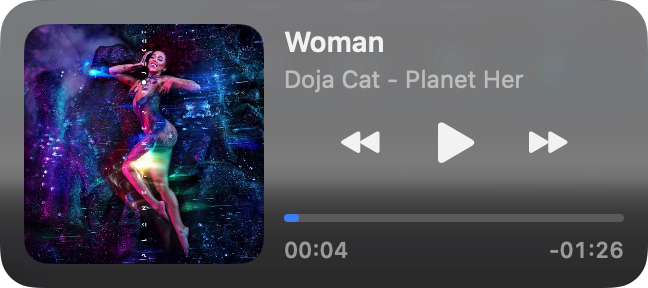
A floating desktop widget
Compact keeps a small listening indicator in reach. Normal adds a horizontal card with track information and controls. Full gives artwork, controls and available lyrics more room. Keep the player above your work windows and choose Dark, Light or System appearance.
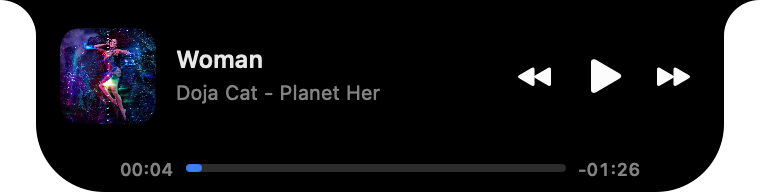
A notch-style music player
Drag the widget near the top centre of the display. A docking hint shows where the solid black notch player will settle, with playback, time and seeking when the source supports them. It also works on a flat external display; a physical MacBook notch is optional.
A left or right side dock
Drag toward either screen edge for a slim vertical dock with playback controls and Play History. The floating and side-docked players use native Liquid Glass on macOS 26+, with translucent glass on earlier supported macOS versions. The notch player keeps its solid black appearance.
Dock and undock with a drag
- Start playback and open a floating widget size.
- Drag the widget toward the top centre or either screen edge until the docking hint appears.
- Release to dock. Drag away from the dock to return to the chosen floating size.
Docking transitions respect Reduce Motion. You can choose the app language in Settings or follow your Mac; all 24 official EU languages are available.
Music first, without per-service setup
NowPlayingWidget follows sources reporting to macOS Now Playing. Play in a compatible app or browser without connecting each service inside the widget. Information and controls vary by source; lyrics require a matching track. The 14-day trial lets you check your own music and desktop arrangement.
Use a separate layout for your stream
Streaming mode provides a freely resizable window for native capture in OBS or Streamlabs Desktop on Mac. Its fonts, backgrounds, transparency and alignment are separate from the desktop player. Configure native capture once in your broadcaster, then the displayed track follows playback automatically.
Questions about desktop widget and notch mode
Does the notch player require a notched MacBook?
No. The top-centre notch-style player works on notched and flat displays, including external screens. NowPlayingWidget requires Apple Silicon and macOS 13 or later.
Can I move the player back to the desktop?
Yes. Drag away from the top or side dock to restore your chosen floating size. Drag back toward an edge to dock again.
Is every mode made of glass?
No. Floating and side-docked players use native Liquid Glass on macOS 26+ and translucent glass on earlier supported systems. The notch player is solid black. Streaming mode has separate appearance controls.
Can the desktop widget show every audio app?
The source must publish playback information through macOS Now Playing. Metadata and available controls vary by source; use the 14-day trial to check your own apps and websites.
Try it with your own listening setup
Download the full app and check your sources, desktop layout and capture workflow before buying. No card is required for the trial.
All player modes · Mac desktop music controls · Audio source guide · Notch player guide · OBS overlay guide