Phone sources & artwork
Pair your phone. Keep music in view.
See your phone’s current track in the Mac widget while you keep listening on the phone or its headphones. Choose the source once; NowPlayingWidget remembers it and attempts to reconnect when you reopen the app.
Before you start
- Use the 1.6.1 update or later on an Apple Silicon Mac with macOS 13 or later.
- Turn Bluetooth on for both devices. Keep your phone nearby and unlocked during setup.
- Open Settings → Bluetooth on iPhone. On Android, open Connected devices → Pair new device, or your phone’s Bluetooth screen. Labels vary by manufacturer.
- If macOS asks, allow NowPlayingWidget to use Bluetooth. You can review that choice in System Settings → Privacy & Security → Bluetooth.
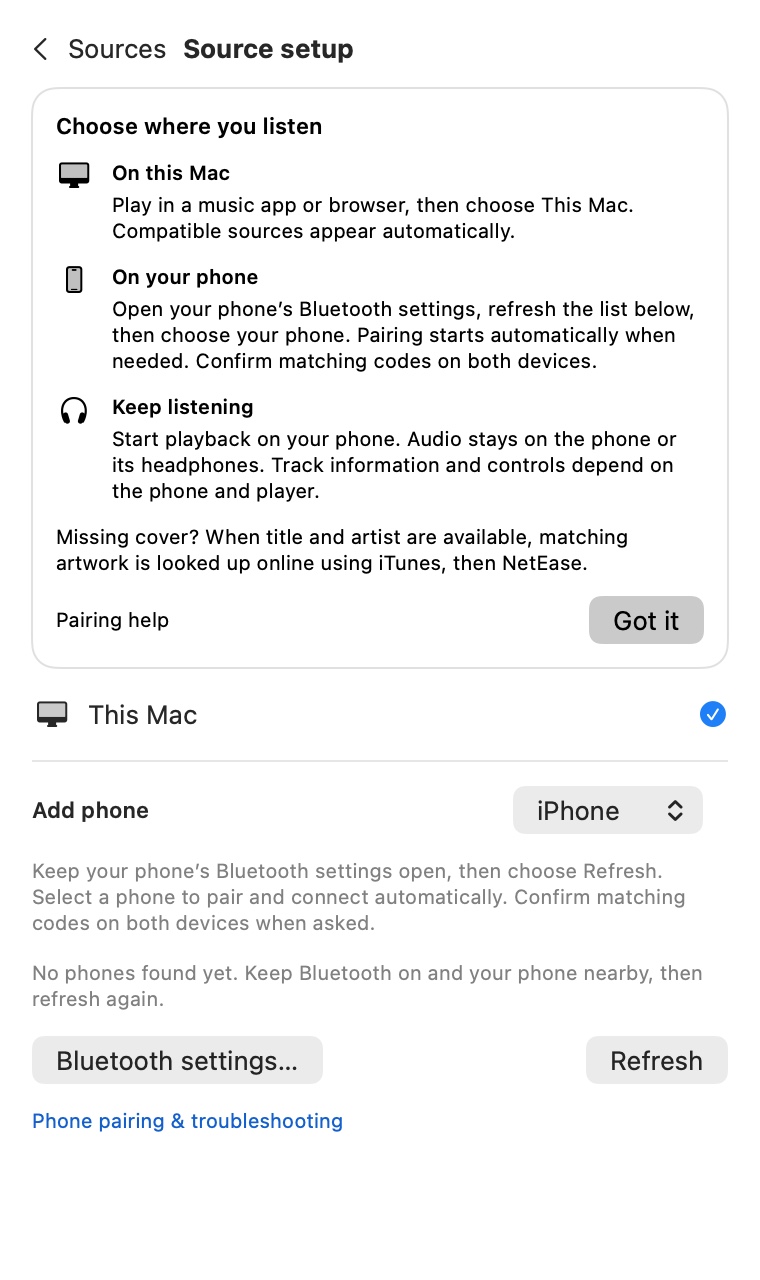
Pair an iPhone or Android phone
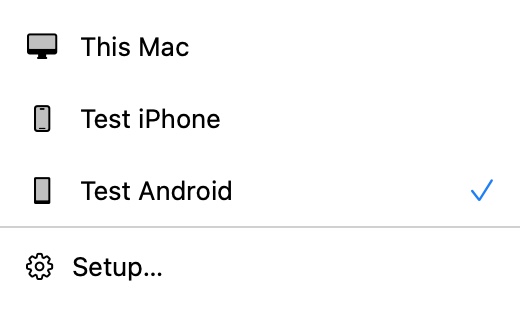
- Open Playback source. Use the Source button on the widget. Its compact dropdown lists This Mac and your saved phones. Choose Setup at the bottom to add or manage phones.
- Open Setup and choose the phone type. Select iPhone or Android under Add phone. Keep the phone’s Bluetooth screen open and choose Refresh.
- Select your phone. Check its name, then choose it. NowPlayingWidget tries to pair when needed and connect automatically. Existing saved phones reconnect directly from the compact dropdown. Pair is also available in Setup.
- Compare the codes. Confirm only if the six-digit code on your Mac matches the code on your phone. Cancel if they differ. Keep both devices awake until setup finishes.
- Start playback on the phone. Check the track title and artist in the widget. Try play/pause only when controls are available; phone and player support vary. Keep listening through your phone or its headphones.
Switch between this Mac and a phone
Open Source and choose This Mac for music apps and browser playback on the Mac. Choose a saved phone for its Bluetooth playback information. The selected source is remembered. If pairing or connection fails, a message explains the failure and the widget returns to the previous source. If that phone is also unavailable, it returns to This Mac. In Setup, Reconnect retries a phone and the remove button forgets only the app’s saved source, not your system Bluetooth bond. Setup grows or shrinks to fit its content, with scrolling for long lists.
If your phone does not appear
Open Source → Setup, keep the phone’s Bluetooth settings open and select Refresh again. Check Bluetooth and the Mac app’s permission, bring the phone closer and wait for discovery to finish. If you have more than one saved phone, check the selected device and type. Avoid repeatedly removing system Bluetooth pairings: start with Refresh, selecting the saved phone and Reconnect.
If pairing succeeds but the widget is blank
Start a track in the phone’s actual music app and check that phone in the Source window. A Bluetooth connection alone does not guarantee that the app shares a title, artist, artwork or timeline. Some iPhone apps send empty metadata; iPhone duration and progress can also be absent. Try another phone player before pairing again. Empty metadata cannot be fixed by an online cover lookup.
If artwork or controls are missing
The widget uses native artwork when the phone supplies it. Otherwise, available title and artist can be used for an online iTunes lookup with NetEase fallback. A match is not guaranteed. Android playback controls now use a media-key connection alongside track information. The S23 Ultra foreground YouTube Music path has been checked for play, pause, next and previous; other phone/player combinations can differ. Some free player plans restrict background playback or skipping. Start playback in the phone’s foreground player before troubleshooting Bluetooth. This release has no phone-to-Mac audio output mode.
Where does audio play?
On the phone or its connected headphones. The Mac widget displays playback information and offers available remote controls. If you use Streaming mode in OBS, capturing the widget provides the visual overlay; choose the stream’s audio source separately in OBS.
More Bluetooth help
For operating-system settings, see Apple’s Mac Bluetooth guide and Mac privacy settings, or Google’s Android/Pixel pairing guide. For app help, send your Mac model, macOS version, phone/player name and the Source status to support. Keep pairing codes, license keys and private account data out of support messages.
Questions and answers
Do I need to install an app on my phone?
No companion app is required for this Bluetooth connection. Your phone and player must expose compatible playback metadata.
Will the phone’s sound play through my Mac?
No. Phone audio stays on the phone or its headphones in this release.
Does every phone music app provide artwork and controls?
No. Metadata, timeline, artwork and controls depend on the phone and player. Empty metadata cannot be repaired by an artwork search.
Can I see the setup tips again?
Yes. Open Source → Setup and choose Setup tips. Dismissing the tips does not remove saved phones.